STL Merge, Split & Cut Tool
Merge STLs onto one plate, split shells apart, or cut a model with a plane · free, no signup
See STL Merge, Split & Cut Tool in action
Free STL Merge, Split & Cut Tool
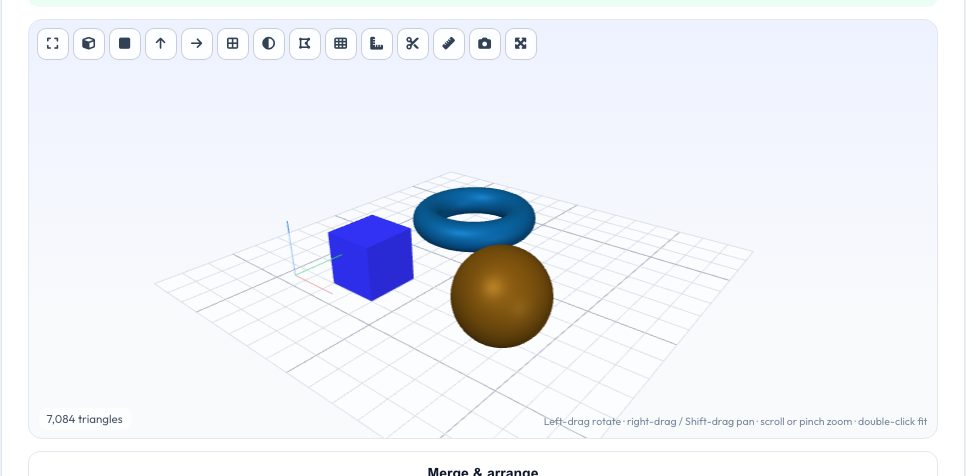
Print plates are often built from several files. The Merge tab loads two or more models and arranges them in a grid, a row, a vertical stack, or keeps their original positions (for assemblies), with a spacing you choose and an option to drop every part to the bed. Each part is colour-coded in the preview, and the result is one mesh you can download as STL, 3MF or OBJ.
The Split tab does the reverse: it finds every connected shell in a single file — useful for multi-part downloads and sliced-plate exports — and lists each one with its size and volume so you can download parts individually or as a ZIP. The Cut tab slices a model with a plane along X, Y or Z, adds flat caps so both halves are watertight, and lets you download each half — ideal for printing tall or oversized models in two pieces.
Key features
Merge with auto-arrange
Grid, row, stack or keep positions, with colour-coded preview.
Split into shells
Every disconnected part listed with size and volume, downloadable alone or as ZIP.
Capped plane cut
Cut along X/Y/Z with a slider; both halves are closed solids.
Any format
STL, OBJ, 3MF, PLY, STEP in; STL, 3MF, OBJ, PLY out.
How to use it
- Choose Merge, Split or Cut.
- Drop in your file(s).
- Adjust arrangement, pick shells, or move the cut slider.
- Download the result.
Worked example
Example
Four STL parts dropped into Merge → arranged on a 2×2 grid with 5 mm gaps and dropped to Z = 0 as one STL. A 120 mm tall figure cut at Z = 60 gives two watertight halves that each print flat.
Who uses this tool
Makers building a multi-part plate
Combine files without opening a slicer.
People with a 'plate' STL
Extract single parts from a combined file.
Printing tall models on small beds
Cut, print flat, and glue.
Tips for the best results
- Cut with the section view first, so you see where the plane falls.
- For a clean glue joint, cut at a flat area and consider adding pegs in CAD.
- Parts that overlap in 'keep positions' mode are not boolean-unioned — slicers handle overlaps as a union anyway.
- Run the repair tool first if a cut says a half is not watertight.
Common mistakes to avoid
- Cutting a non-watertight mesh and expecting closed halves.
- Merging parts at identical coordinates so they overlap.
- Forgetting the gap so parts touch and fuse in the print.
Why use AZRS QuickFix?
It is 100% free, needs no signup and has no watermark or usage limits. The tool runs in your browser, so what you type stays on your device, and it works on phones, tablets and desktops. New tools are added every week — bookmark this page or browse the full QuickFix toolbox.
Frequently asked questions
Does merging boolean-union overlapping parts?
No — it concatenates the meshes. Slicers print overlapping closed shells as one solid.
How does splitting detect parts?
By connectivity: triangles that share vertices belong to the same shell.
Can I cut at an angle?
Cuts are along X, Y or Z. Rotate the model first with the transform tool for an angled cut.
Is it private?
Yes — nothing is uploaded.