PDF Drawing to DXF / SVG Vector Extractor
Extract the real vector lines and curves from a PDF drawing into DXF or SVG at true scale · free, no signup
See PDF Drawing to DXF / SVG Vector Extractor in action
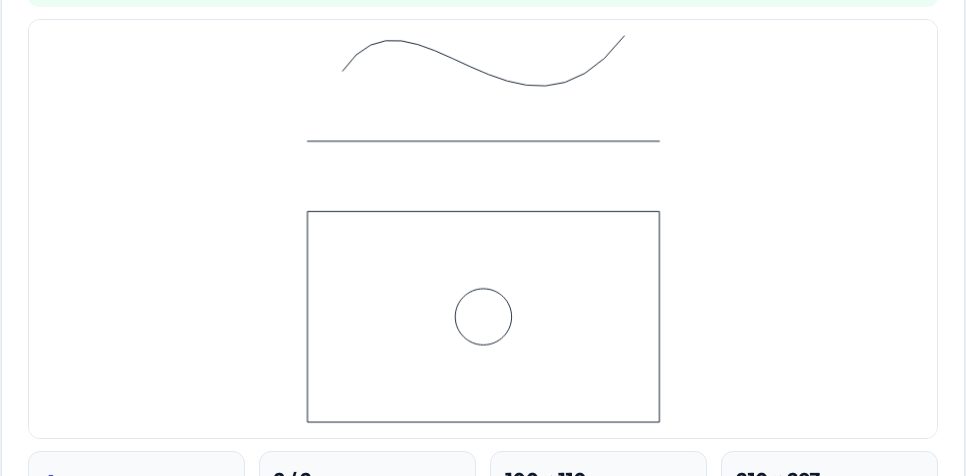
Free PDF Drawing to DXF / SVG Extractor
Many drawings only exist as PDFs: a supplier's floor plan, a template, a chart or a CAD drawing exported for printing. If the PDF contains real vector graphics rather than a scanned picture, the lines and curves are still in there as drawing commands. This tool reads those commands from the page you choose — move, line, curve, rectangle and close operations, with the page's transformation matrices applied — and rebuilds them as geometry in millimetres at true page size (1 PDF point = 0.3528 mm). A scale setting turns a drawing printed at 1:50 into a full-size DXF, and a preview shows exactly what was found.
Optional clean-up joins segments into continuous paths and removes duplicate lines, short paths can be dropped, and filled shapes can be kept as outlines or ignored. Export DXF (R2000) or SVG. Scanned PDFs contain pictures, not vectors, so the tool says so and points you to the image tracer; text in PDFs is stored as fonts and is not converted. The file is read in your browser and never uploaded.
Key features
Real vector extraction
Lines, rectangles and Bézier curves from the PDF drawing commands.
True size and scale
Page units in mm with a drawing-scale setting (1:10, 1:50, 1:100…).
Clean-up
Join paths and remove duplicate segments; drop short paths.
DXF or SVG output
R2000 DXF or true-scale SVG.
How to use it
- Drop in a vector PDF.
- Choose the page and the drawing scale.
- Check the preview and clean-up settings.
- Download the DXF or SVG.
Worked example
Example
A PDF page that contains a 100 × 60 mm rectangle and a circle drawn as four Bézier curves extracts to a closed rectangle and a closed polyline of the circle at exactly 100 × 60 mm; at scale 1:50 the same drawing becomes 5,000 × 3,000 mm.
Who uses this tool
Makers and CNC users
Turn PDF templates into cutting files.
Architects and builders
Recover geometry from PDF plans.
Students
Extract chart or diagram outlines.
Tips for the best results
- Check that the PDF is vector: you can zoom in indefinitely without blur.
- Enter the printed drawing scale so dimensions come out at full size.
- Use clean-up to merge segments.
- Keep fills as outlines only if you need hatch boundaries.
Common mistakes to avoid
- Using a scanned PDF and expecting vectors.
- Forgetting to set the scale for a 1:50 plan.
- Expecting text to become geometry.
Why use AZRS QuickFix?
It is 100% free, needs no signup and has no watermark or usage limits. The tool runs in your browser, so what you type stays on your device, and it works on phones, tablets and desktops. New tools are added every week — bookmark this page or browse the full QuickFix toolbox.
Frequently asked questions
Why did it find nothing?
The PDF is probably a scan or only contains text.
Does it keep layers?
PDF layers are not exposed; geometry goes to one layer.
Is it private?
Yes — the PDF stays in your browser.
Does it need an internet connection?
It loads the PDF engine from a CDN once.