G-code to SVG / PNG / DXF Toolpath Converter
Export G-code toolpaths as SVG, PNG or DXF, per layer or flattened.
More free tools
See G-code to SVG / PNG / DXF Toolpath Converter in action
Free G-code to SVG / PNG / DXF Converter
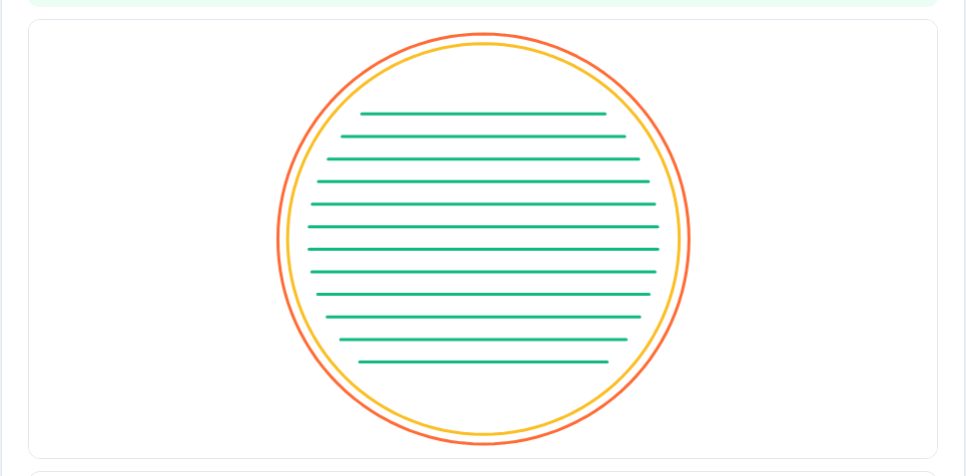
A G-code file is hard to share or document; an image of the toolpath is easy. This converter parses your FDM G-code (including arcs and every layer) and renders any range of layers to SVG, PNG or DXF. SVG output is true-scale millimetres, with paths grouped per layer and coloured by feature type (outer wall, inner wall, infill, support…) or by speed; PNG output lets you pick the resolution in pixels per millimetre and a transparent, white or dark background.
You can export a single layer (to import into Inkscape, a laser cutter or a CAD sketch), a flattened range of layers, a ZIP containing one SVG per layer for documentation, or a DXF with each G-code layer on its own DXF layer. Everything is computed in your browser.
Use it in 4 steps
Drop in your .gcode file.
Pick the first and last layer.
Choose colours, line width and background.
Download SVG, PNG, a ZIP of layers or DXF.
Key features
True-scale SVG
Millimetre units at 1:1; paths grouped per layer with Z recorded.
PNG at any resolution
From a quick 5 px/mm preview to a 60 px/mm print.
Layer ZIP & DXF
One SVG per layer, or a DXF with a DXF layer per print layer.
Colour modes
By feature, by speed or single colour; optional travel moves.
A real example, step by step
Layer 1 of a bracket (first-layer outline and infill) exported as a black-on-white SVG, imported into a laser cutter as a cutting reference at true size.
Who uses this tool
Makers documenting prints
Share toolpath images in forums and build logs.
Educators
Illustrate how slicers build layers.
Laser/CNC hobbyists
Reuse a printed layer outline as a cut path.
Tips for the best results
- Use 'Single colour' with a white background for clean documentation figures.
- Larger PNG resolutions take more memory; 10–20 px/mm is plenty.
- Include travel moves only when explaining retraction or stringing.
- The DXF contains lines — heal or join them in your CAD/laser software if you need closed outlines.
Common mistakes to avoid
- Exporting a thousand layers flattened into one image — it will be a black blob.
- Expecting arcs as arcs — they are exported as short line segments.
- Forgetting that G-code Y runs up the bed; the SVG is flipped to match.
Frequently asked questions
Are SVG units millimetres?
Yes — width/height are in mm and the viewBox is 1 unit per mm.
Does it support Cura, Prusa, Orca and Bambu G-code?
Yes, anything with standard G0/G1/G2/G3 moves.
Can I get a 3D image?
Use the G-code Viewer and its screenshot button.
Is my file uploaded?
No.
Free, fast and private by design
No signup, no watermark. New AZRS tools are added every week.