Onshape Sketch Constraints, Shortcuts & Troubleshooting Guide
Understand sketch constraints, fix over-defined sketches, and learn good Onshape habits · free, no signup
See Onshape Sketch Constraints, Shortcuts & Troubleshooting Guide in action
Onshape Sketch Constraints & Troubleshooting Guide
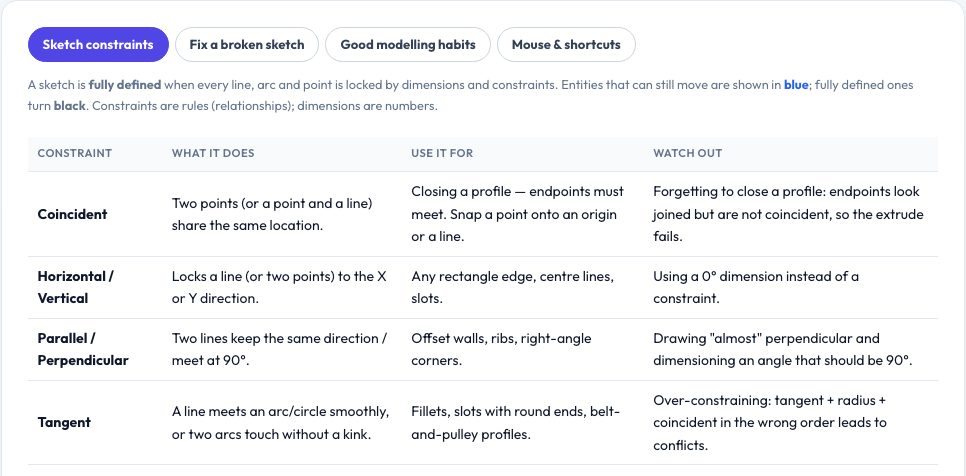
Almost every Onshape beginner hits the same walls: the sketch will not fully define, it says the sketch is over-defined, the profile refuses to extrude, a feature suddenly fails after an edit. This guide explains the logic behind sketch constraints — what coincident, horizontal/vertical, parallel, perpendicular, tangent, concentric, equal, midpoint, fix, symmetric and dimension do, when to use each, and the classic mistakes — then walks through fixes for the most common problems: under-defined (blue) geometry, conflicting constraints, open profiles, jumping sketches and regeneration errors.
It also collects the habits that make parametric models robust: start at the origin, constrain before dimensioning, use construction geometry and variables, name features, fillet last, use planes instead of faces as sketch references, and make versions before risky edits. A short table covers mouse mapping and the shortcuts most people use, with a pointer to Onshape's own shortcut list for your version.
Key features
Constraint reference
What each does, when to use it and what to avoid.
Troubleshooting
Fixes for under-defined, over-defined, open profiles and regeneration errors.
Good habits
Twelve practical modelling rules.
Mouse & shortcuts
The essentials, with where to check the full list.
How to use it
- Open the constraint table and match what your sketch needs.
- Use the troubleshooting tab when something goes wrong.
- Apply the modelling habits to your next part.
- Check Onshape's Help for the exact shortcuts of your version.
Worked example
Example
A sketch won't extrude because the profile is open: zoom into each corner, add Coincident constraints between the endpoints that look joined but are not, and the region lights up so it can be extruded.
Who uses this tool
Onshape students
Fix sketches and understand why.
Makers
Build reliable parametric models.
Instructors
A one-page troubleshooting reference.
Tips for the best results
- Fix one problem at a time and undo the last constraint rather than adding more.
- Draw with approximate sizes, then dimension.
- Use construction lines for centre lines and guides.
- Sketch on origin planes to avoid fragile face references.
Common mistakes to avoid
- Fixing everything instead of dimensioning it.
- Adding dimensions that duplicate constraints.
- Referencing faces that later disappear.
Why use AZRS QuickFix?
It is 100% free, needs no signup and has no watermark or usage limits. The tool runs in your browser, so what you type stays on your device, and it works on phones, tablets and desktops. New tools are added every week — bookmark this page or browse the full QuickFix toolbox.
Frequently asked questions
What colour means fully defined?
Black; blue geometry is still free to move.
Why does Onshape say over-defined?
You added a constraint or dimension that duplicates an existing one; remove the last addition.
Why won't my sketch extrude?
The profile is not closed (or overlaps itself); join the endpoints with coincident constraints.
Are the shortcuts correct for my version?
Defaults can change; confirm in Help ▸ Keyboard shortcuts.