Image to SVG / DXF Vector Tracer for Laser & CNC
Trace a picture into clean vector outlines (SVG or DXF) with threshold, smoothing and specks removal · free, no signup
See Image to SVG / DXF Vector Tracer for Laser & CNC in action
Free Image to SVG & DXF Tracer for Laser and CNC
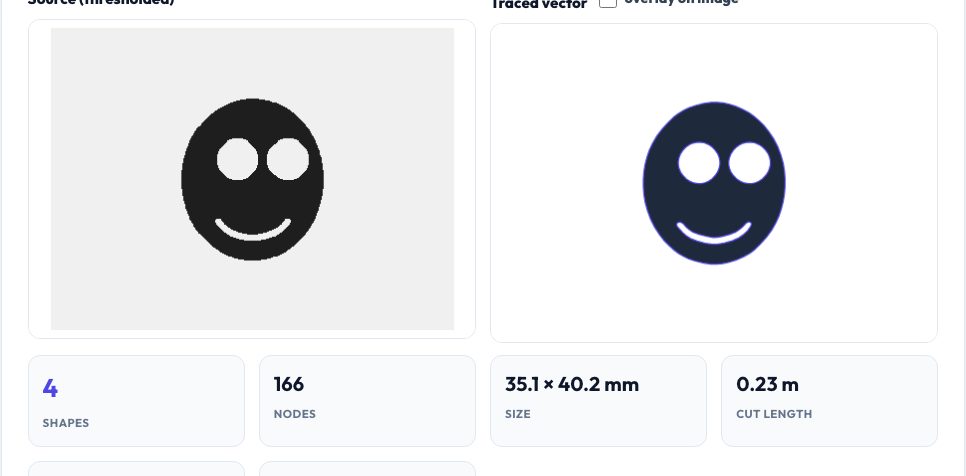
Turning a picture into a cutting or engraving path is a staple job for laser, CNC, vinyl-cutter and 3D-printing users. This tracer converts a PNG, JPG, GIF, WebP or BMP into closed vector outlines using marching squares with sub-pixel interpolation: you set the brightness threshold (or press Auto for Otsu's method), choose how much to smooth the image first, remove specks below a size, simplify the path with the Douglas–Peucker algorithm, round the corners lightly or strongly, and set the exact output width in millimetres. The preview shows the thresholded source beside the traced shapes with an optional overlay on the original so you can check the fit.
Dark regions become filled shapes and regions inside them become holes, using the even-odd rule, so letters like O and A are correct. Export as a filled SVG for engraving and vinyl, an outlines-only SVG for cutting, or a DXF of closed polylines. Statistics show the number of shapes, nodes, size and cut length. It works best on high-contrast art; for photos, raise the smoothing, tune the threshold or pre-process first. Everything runs on your device.
Key features
Threshold with Otsu auto
Manual slider or automatic threshold for clean separation.
Smoothing and simplification
Image blur, speck removal, Douglas–Peucker and corner rounding.
Exact size
Output width in mm; shapes, nodes and cut length reported.
SVG or DXF
Filled SVG, outline SVG or closed-polyline DXF.
How to use it
- Drop in an image.
- Adjust the threshold or press Auto, then tune smoothing and specks.
- Set the output width in millimetres.
- Download SVG or DXF.
Worked example
Example
A 1200 px logo traced at threshold 128 with light smoothing becomes a few dozen closed shapes sized to exactly 100 mm wide; an 'O' becomes two loops (outside and hole) that fill correctly with the even-odd rule.
Who uses this tool
Laser and CNC users
Convert logos and drawings to cut or engrave paths.
Vinyl and sign makers
Make cuttable shapes from artwork.
Makers
Turn drawings into SVG for 3D printing or CAD.
Tips for the best results
- Start with a high-contrast image and use the Auto threshold.
- Raise 'remove specks' for scanned drawings.
- Use 'simplify' to cut nodes and speed up laser motion.
- Check the overlay before you send it to the machine.
Common mistakes to avoid
- Tracing a low-contrast photo and expecting a clean result.
- Leaving specks and cutting dust.
- Forgetting to set the output width.
Why use AZRS QuickFix?
It is 100% free, needs no signup and has no watermark or usage limits. The tool runs in your browser, so what you type stays on your device, and it works on phones, tablets and desktops. New tools are added every week — bookmark this page or browse the full QuickFix toolbox.
Frequently asked questions
Does it trace colour?
No — it makes a two-tone (threshold) trace; run it per colour for multi-colour art.
What image sizes work?
Up to the working resolution you choose; large images are downscaled.
Is the file uploaded?
No.
Is it free?
Yes.