Text to Speech
Natural Human Voice
Transform any text into lifelike speech with our advanced AI voice generator. Perfect for content creators, educators, and businesses — completely free.
Enter Your Text
0 charactersChoose Voice
Language
Emotion & Style
Speaking Speed
Powered by Advanced AI
Industry-leading text-to-speech technology for natural, human-like voices
60+ Languages
Supporting all major languages with native-accent voices
Emotion Control
Happy, sad, angry, calm — match the tone of your message
Voice Cloning
Upload samples to create custom voices (coming soon)
See Free AI Text to Speech — Natural Voice Generator in action
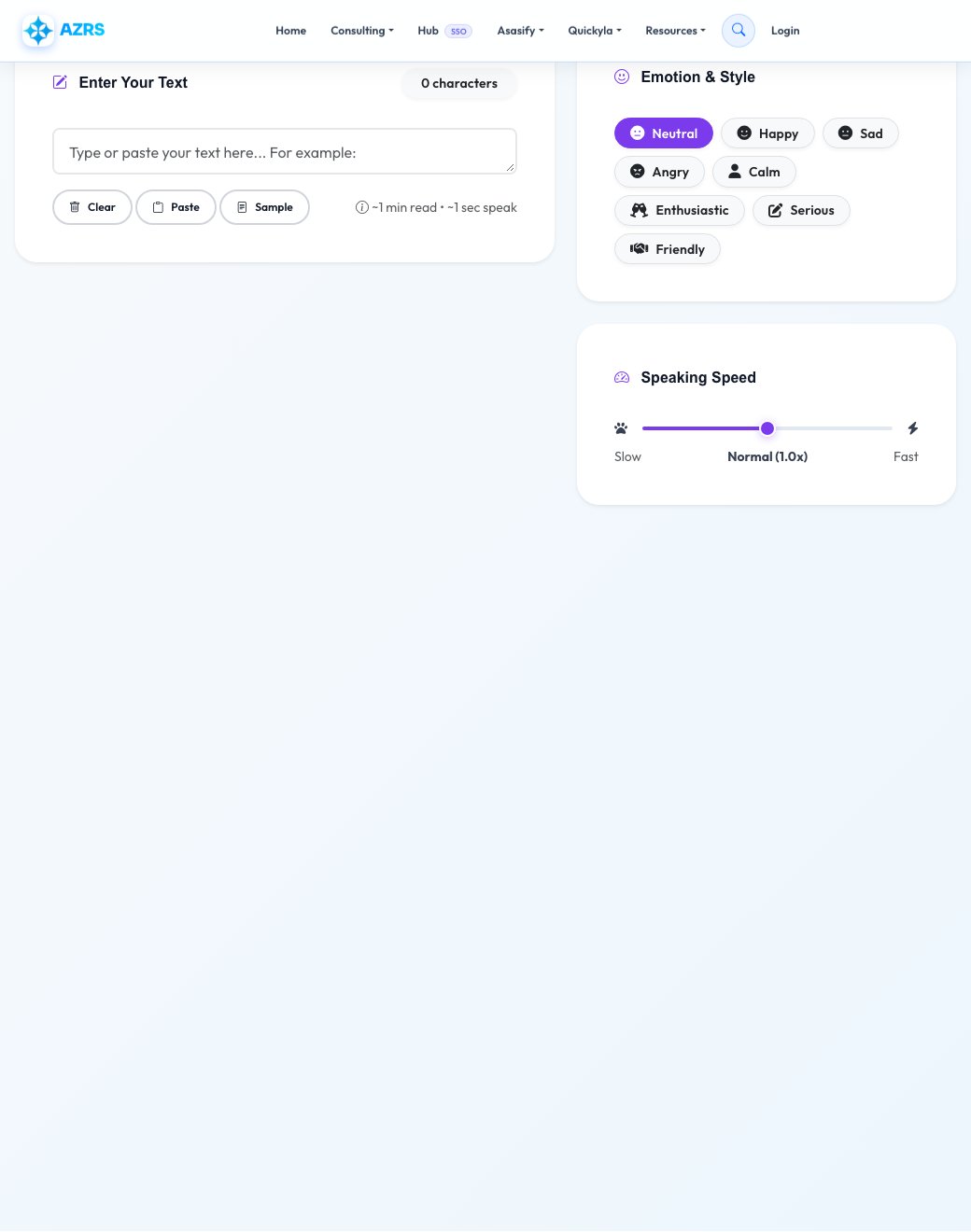
Free AI Text to Speech — Natural Voice Generator
Convert written text into clear, natural-sounding audio in seconds. Paste or type your text, choose a voice from the available language and voice options, adjust the speaking speed, and press play to preview it instantly — or download the generated audio to use elsewhere.
It's built for anyone who needs spoken audio without a microphone or recording setup: content creators making voiceovers, students who prefer to listen to notes, and anyone who benefits from having text read aloud rather than read on screen.
Key features
Multiple voices & languages
Choose from a range of AI voices across multiple languages rather than a single robotic default.
Adjustable speed
Slow the narration down for learning or speed it up for a quicker listen.
Instant preview & download
Press play to hear the result immediately, or download the audio file to use in a video or presentation.
No installation required
Runs entirely in the browser — no software, plugin, or account needed.
How to use it
- Paste or type the text you want to hear into the input box.
- Pick a voice and language, and adjust the speed to your preference.
- Press play to listen instantly in the browser.
- Download the generated audio file to use anywhere you need it.
Worked example
Example
Paste a 200-word blog intro, choose a natural English voice at normal speed, and get a ready-to-download audio clip you can drop straight into a video voiceover or podcast intro.
Who uses this tool
Content creators
Generate voiceovers for videos, reels and podcasts without recording their own voice.
Students & readers
Listen to lecture notes, articles or long documents instead of reading them on screen.
Accessibility use cases
Help anyone who finds reading on screen difficult by converting text to audio.
Tips for the best results
- Break very long text into shorter sections for more natural pacing and easier editing of the final audio.
- Preview at normal speed first before adjusting — most voices sound most natural in their default range.
- Punctuation matters: commas and periods create natural pauses, so well-punctuated text produces smoother narration.
- Download and keep a copy of any audio you plan to reuse, since generated clips aren't stored for you.
Common mistakes to avoid
- Pasting text with heavy abbreviations or symbols and expecting perfect pronunciation — spell out anything that needs to sound a specific way.
- Choosing a voice/language mismatch, like an English voice for non-English text, which produces awkward pronunciation.
- Forgetting to download the audio before navigating away, since the result isn't automatically saved to your account.
Why use AZRS QuickFix?
It is 100% free, needs no signup and has no watermark or usage limits. The tool runs in your browser, so what you type stays on your device, and it works on phones, tablets and desktops. New tools are added every week — bookmark this page or browse the full QuickFix toolbox.
Frequently asked questions
Is this text-to-speech tool free?
Yes — completely free with no sign-up required.
Can I download the audio?
Yes, you can download the generated speech and use it in videos, presentations or anywhere you like.
Do the voices sound natural?
Yes — the tool uses AI voices designed to sound clear and human rather than robotic.
What languages are supported?
Multiple languages and voices are available for generating natural speech across a range of text.
Can I control the speaking speed?
Yes, use the speed control to slow narration down or speed it up before generating or after previewing.
Is there a text length limit?
Very long input may need to be split into sections for the best pacing and reliability.