| Z ↕ | Symbol | Name ↕ | Mass ↕ | Category | Period ↕ | Group ↕ | MP °C ↕ | BP °C ↕ | Density ↕ | Elec. ↕ |
|---|
See Free Interactive Periodic Table in action
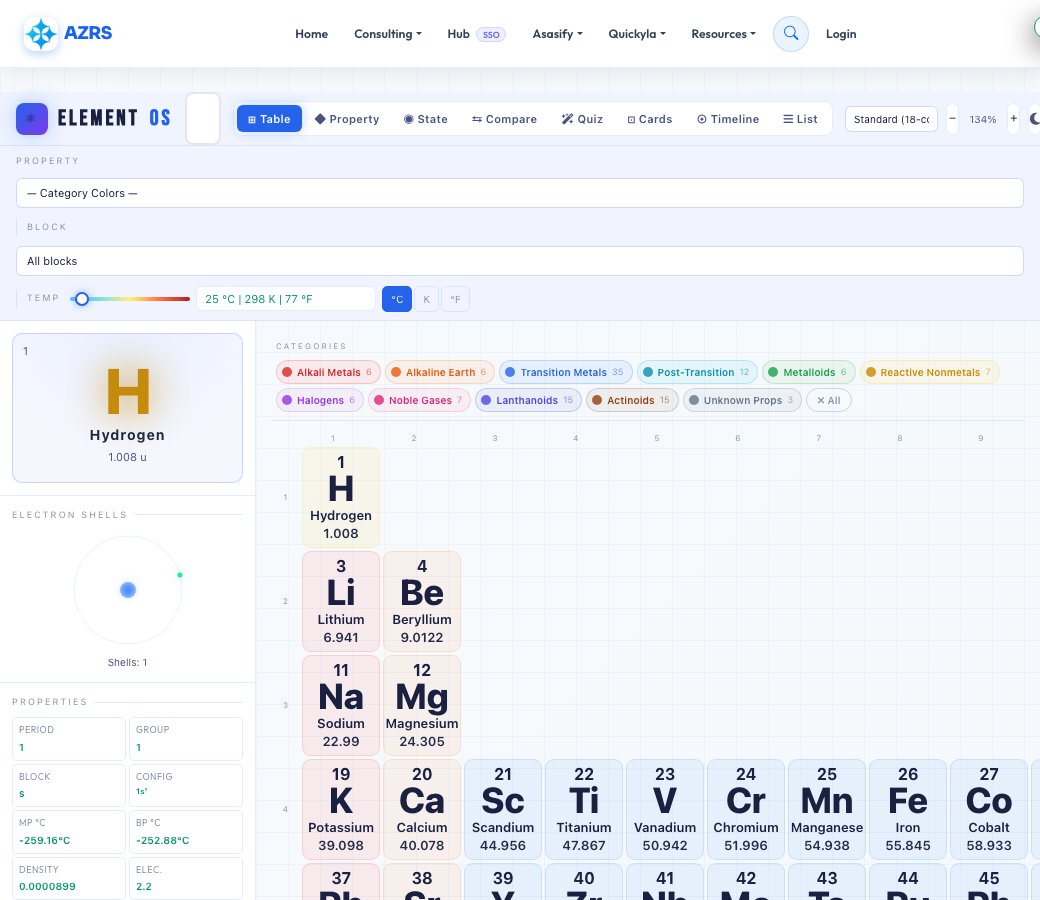
Free Interactive Periodic Table
A fully interactive periodic table with search-as-you-type (by element name, symbol or atomic number with autocomplete), multiple table layout styles, zoom controls and a fullscreen mode, plus a dark/light toggle so it's comfortable to use for long study sessions.
Beyond browsing, it can colour elements by a chosen property or block, and includes a temperature slider running from -273°C to 6000°C that updates which elements would be solid, liquid or gas at that temperature — turning the static table into a live demonstration of physical states. Hovering any element shows a detail tooltip with mass, block, density, electronegativity, melting/boiling points and neutron count.
Key features
Search with autocomplete
Find any element instantly by name, symbol or atomic number as you type.
Property & block colouring
Recolour the whole table by a selected property (like electronegativity) or by element block.
Temperature state slider
Slide from -273°C to 6000°C and see which elements would be solid, liquid or gas at that temperature.
Detailed hover tooltips
Hover any element for mass, density, electronegativity, melting/boiling points and neutron count.
How to use it
- Search for an element by name, symbol or atomic number, or just browse the grid.
- Hover or tap an element to see its detailed tooltip.
- Switch the colouring mode to a property or block to compare elements visually.
- Drag the temperature slider to see which elements change state at that temperature.
Worked example
Example
Drag the temperature slider up to around 3000°C and watch most metals that were shown as solid switch to a liquid or gas state indicator, giving an intuitive feel for just how extreme a temperature that really is compared to elements like tungsten that stay solid far longer.
Who uses this tool
Chemistry students
Study element properties, trends and states of matter interactively instead of from a static printed chart.
Teachers
Demonstrate periodic trends and states of matter live in class using the temperature slider and property colouring.
Curious learners
Explore element details like density, melting point and electronegativity element by element.
Tips for the best results
- Use property colouring (like electronegativity) to visually spot periodic trends across rows and columns at a glance.
- Try the temperature slider at a few dramatic values (like near absolute zero, or above 3000°C) to see state changes ripple across the table.
- Use fullscreen mode on a larger screen for a clearer view when studying in detail.
- Use search with autocomplete rather than scanning the grid manually when you need a specific element fast.
Common mistakes to avoid
- Assuming melting/boiling point figures apply at all pressures — they're generally given at standard atmospheric pressure.
- Confusing block colouring (s/p/d/f regions) with property colouring — they highlight different things, so check which mode is active.
- Skipping the tooltip and missing detailed values like electronegativity or neutron count that aren't shown on the tile itself.
Why use AZRS QuickFix?
It is 100% free, needs no signup and has no watermark or usage limits. The tool runs in your browser, so what you type stays on your device, and it works on phones, tablets and desktops. New tools are added every week — bookmark this page or browse the full QuickFix toolbox.
Frequently asked questions
Is the periodic table free to use?
Yes, fully free with no signup.
Can I search for an element by atomic number?
Yes, the search box with autocomplete accepts element names, symbols or atomic numbers.
What does the temperature slider do?
It shows which elements would be solid, liquid or gas at the selected temperature, from -273°C up to 6000°C.
Can I color elements by a specific property?
Yes, use the property selector to recolour the whole table by things like electronegativity, density or other properties.
Is there a dark mode?
Yes, toggle dark/light mode with the icon button above the table.
Does it work on mobile?
Yes, the table is zoomable and supports touch interaction including tapping an element for its detail tooltip.