
Your Progress Photos with Before/After Slider
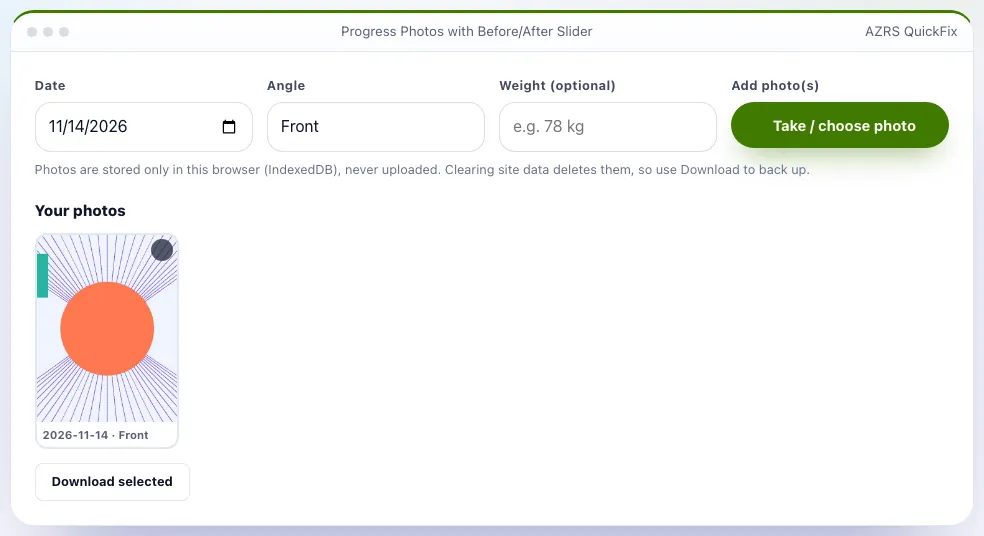
Add front, side and back photos as you train and see a timeline of your progress. Pick any two photos and drag a slider to compare before and after.
- Free to use
- No signup
- Nothing to install
- Runs in your browser
A photo from week 1 versus week 12 side by side, with the slider showing visible changes in posture and shape.Open the Progress Photos with Before/After Slider
Illustration. Open the tool for the real thing.
See it in action
Sample input: Date = 2026-11-14; e.g. 78 kg = Sample; File = sample.png
What is the Progress Photos with Before/After Slider?
Add front, side and back photos as you train and see a timeline of your progress. Pick any two photos and drag a slider to compare before and after. Photos are resized and stored only in your browser, never uploaded.
Take them in the same place, light and pose each time for the fairest comparison, and download any photo to back it up.
3 steps to your result
Open the tool and follow along. Nothing to install.
What you get
Front, side and back.
Drag to compare.
Stays on your device.
Full control.
Saves space.
AZRS tools are free to open and use.
Used for
Pick one to see how it fits.
How it compares
A plain look at this tool next to the usual alternative.
| This fitness tool | Desktop software | |
|---|---|---|
| Install | Nothing to install | Usually an app or program to install |
| Account | No signup | Depends on the product |
| Cost | Free to use | Free or paid, depends on the product |
| Where it runs | In your browser tab | On your computer |
Questions people ask
Can anyone else see my photos?
No. They never leave your browser.
Is it free and private?
Yes, with no account. Timeline by date and angle; Before/after slider; Private storage. What you save stays on this device, and nothing is sent anywhere. Pick the date and angle, then add a photo. Add more over the following weeks.
How do I use the Progress Photos with Before/After Slider?
1. Pick the date and angle, then add a photo. 2. Add more over the following weeks. 3. Tap two photos to choose before and after. 4. Drag the slider to compare.
Any tips for good results?
Same lighting, distance, time of day and pose. Back up photos you value.
What mistakes should I avoid?
Clearing browser data without downloading photos.
More free tools
Related to the Progress Photos with Before/After Slider.
Try the Progress Photos with Before/After Slider now
Private photo timeline with a drag-to-compare before and after slider. Free to use.
Try it free