How to check your PC's hard-drive health
A few built-in checks can tell you whether your HDD or SSD is showing signs of trouble. Storage drives have a tendency to fail when you least expect it. A traditional hard drive may give you a warni…
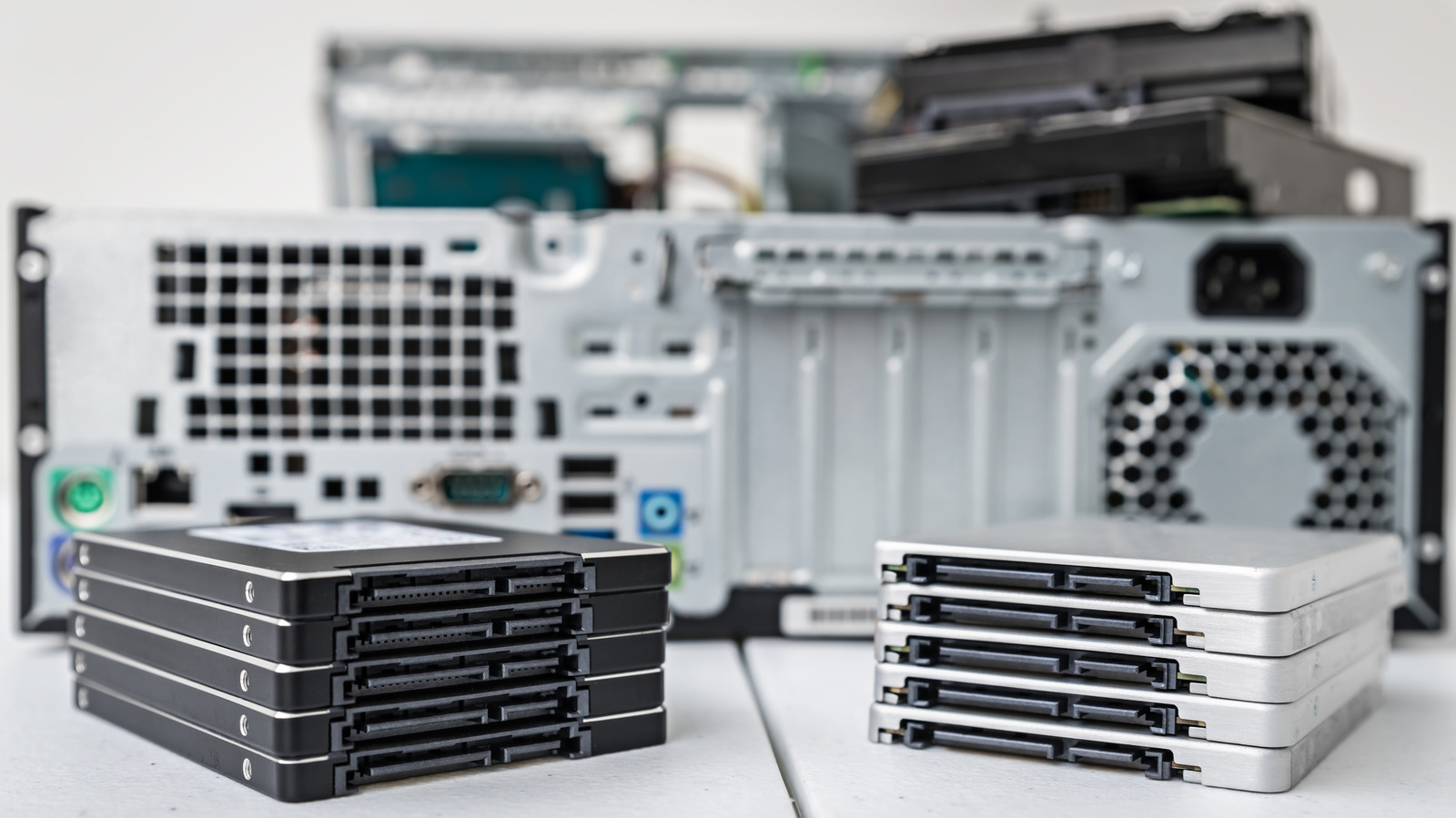
A few built-in checks can tell you whether your HDD or SSD is showing signs of trouble.
Storage drives have a tendency to fail when you least expect it. A traditional hard drive may give you a warning with clicking or grinding sounds, but an SSD has no moving parts to make a fuss. Problems with either type can manifest as corrupted files, abnormally slow access, frequent read or write errors, crashes, or a drive that periodically disappears from Windows.
If any of that is already occurring, back up your important files before doing much else. Diagnostics are good, but it's not as much fun to recover the only copy of something when a drive dies.
Windows has several built-in methods for checking the health of drives, but the information it can provide will vary based on the hardware in the computer. Free utilities can go further and read the drive's Self-Monitoring, Analysis and Reporting Technology (SMART) data.
There is one limitation, though. A healthy status can be reassuring, but it's certainly not a lifetime guarantee.
The simplest way to get started in Windows 11 doesn't involve opening a terminal or feigning a love for command lines.
Windows can display estimated remaining life, available spare capacity and temperature for supported NVMe SSDs. It can also alert you if spare capacity is low, reliability has decreased or if the drive has gone into read-only mode.
There is one thing to look out for here. Microsoft says this health monitoring doesn't cover SATA SSDs or traditional hard drives. If Windows provides little or no health information, don't assume that it's a clean bill of health.
Read Full Story at Engadget →